Showing posts with label google docs. Show all posts

Monday, March 2, 2015

A Wonderful Google Drive Tool to Insert Different Accents in Your Docs

March 3, 2015
Easy Accents is definitely a must have Google Docs add-on for students, teachers, educators and anyone else who write using different language formats. Easy  Accents enables you to easily insert accents for different languages directly into your Google Doc. The add-on supports a wide variety of accents that include: Esperanto Finnish, French, German, Hungarian, Icelandic, Maori, Portugu�s, S�mi, Spanish to mention a few. And only recently Easy Accents added a new feature that lets you insert capital accents in your docs.


To start using Easy Accent, you need to install it from this page. After granting it permission to access your Google Docs, you simply click on �Add-ons� and select �Easy Accents� and then click the language you want to use. Accents of that language will be displayed on the sidebar of your Google doc from which you can directly insert them into your paper. Watch the video below, created by Greg Lawrence, to see this add-on in action.


Sunday, March 1, 2015

Professionally Designed Templates to Use in Google Docs and Sheets

March 2, 2015
Template Gallery is a useful Google Doc add-on for teachers and students. It provides you with a variety of professionally designed templates for your documents and spreadsheets. Most of these templates are not available in Google Drive�s public gallery. Examples of the templates provided by this add-on include: calendars, schedules, invoices, time sheets, budgeting tools, letters, resumes, financial calculators, and more.


To use Template Gallery, you need to install the extension from this page. Once installed you can then browse through the gallery.�When you find a template you want to use, click on the Copy to Google Drive button and the add-on will save a copy of the template into the root folder of your Google Drive.�

Wednesday, February 25, 2015

A Very Good Tool to Create Charts from Spreadsheets and Insert Them into Google docs

February 25, 2015
The Charts Builder is a Google Docs add-on that we have discovered while we were curating google Forms Tools for Teachers. Charts Builder allows you to build a chart from the data you have in your Google spreadsheet and then insert it directly into your document.


The Charts Builder allows you to select the type of chart and a spreadsheet. Everything is integrated and your chart will be added to the line you select in only 5 simple steps:


1-Open Charts from the add-ons menu
2- Select a chart type. (The Chart Builder will explain how to organize your data)
3- Click the load data button and choose your spreadsheet
4- Now you can drag to select your data
5- That�s it; just click the Insert button.

Follow us on : Twitter, Facebook , Google plus, Pinterest .

Tuesday, February 24, 2015

Two New Google Drive Updates You Should Know About

February 24, 2015
Here is a very interesting set of updates added today to Google Docs. These updates are especially helpful for student researchers and teachers who prefer to use Google Docs to write long research papers and theses.  Google Docs now allows you to customize how the headers and footers appear on the first page of your documents.With this update, you will be able to have a specific header and footer for the first page of your documents. "After inserting a header or footer in your document you�ll see a new checkbox--just tick it and you�ll be able to set a different header and footer on the first page."


Another important update is the addition of a menu for  inserting page numbers which lets you customize how and where you start your page numbers.

Courtesy of Google for Education

Sunday, February 22, 2015

An Easy and Quick Way to Grade Quizzes on Google Drive Using Super Quiz Tool

February 22, 2015
Super Quiz is an excellent Google Sheets add-on that allows teachers to add some amazing functionalities to the quizzes they create through Google Forms. For instance, when you create a quiz, you only need to complete it once with an answer key and all future submissions will be automatically graded according to the answers you provided. Another important feature of Super Quiz is that it enables you to get a break down of class understanding and a list of incorrect students' answers  for each question in case you want to stage an intervention.


Also, �By filling out a few cells of information, you can also generate personalized differentiated written feedback emailed to students as soon as they submit a response. No need to monitor and �re-grade� - just set-up and go!You can split your quiz in up to 4 different topics, and provide specific feedback on each. If you don�t want to email students, you can choose to print feedback on a 2x2 array, too.�

Watch the video below to learn more about Super Quiz


Saturday, February 21, 2015

A Very Good Google Doc App for Helping Students with Their Learning

February 21, 2015
Texthelp Study Skills is a very good Google Doc add-on. Students can use it to help them with their studies. It allows them to select, highlight, and group content for review and learning. The process is very simple: open a Google Doc, highlight the key areas in the text you are interested in and click on �Collect Highlights� to extract and place it in a new document (by color or location) for students or others to review.


Teachers can use Texthelp Study Skills for a variety of purposes including: helping students identify and group key facts together, assisting students with their vocabulary learning by indicating new words to learn. It can also be used for collecting data and materials for a research project.

Texthelp Study Skills is free for 30 days after which you  can continue to use one color highlighter and can collect and clear highlights. To keep using all four color highlighters, you can purchase a subscription to Read&Write for GoogleTM, a  comprehensive set of reading, writing, and studying support tools for Google Docs, Web, PDFs, and ePubs. Read&Write for Google is available in the chrome store.

Thursday, February 19, 2015

A Handy Google Drive Tool to Create Animated Presentations and Engaging Educational Videos

February 19, 2015
In a post we published a few months ago, we talked about WeVideo and how teachers  use it to create videos and short animations in Google Drive. Today, we are introducing you to PowToon Edu, another equally powerful tool to use to create engaging videos and animated presentations.


Pontoon Edu allows you to animate difficult topics and engage your students using a wide variety of tools. You can easily drag and drop characters and props into your slides and assign it an animation, choose from different pre-designed templates and style libraries.Videos and animated presentations you create through PowToon Edu can be exported in various ways. You can share them on YouTube or Facebook, download them to your computer. You can also export them as MP4 file to embed in your classroom blog or website.

Watch the video below to learn more about PowToon Edu


Tuesday, February 17, 2015

3 Important Google Drive Tips for Teachers

February 17, 2015
For those of you who haven�t seen them yet, Google for Education has recently added some interesting posts covering a bunch of handy features to use on your Google Drive. Here are the three most interesting updates I want to bring to your attention:

1- How to search  Google for publicly shared Google Docs 
In this animated picture, Google For Education illustrates the process of using Google search engine  to look for Google docs that are publicly shared in the net. Here is how it works: head over to Google and type in : site:docs.google.com followed by the title of the doc you are looking for in inverted commas.


search for Google docs


2- Download Docs in PDF format
Google Docs allows users to easily save and share their docs in PDF format. Here is how it works: in your Google Doc, click on �file�then on �download" and select �PDF Document�.


download doc as pdf


3- Using Research Tool to add citations
In the video below, Dean Stokes visually demonstrates the process of adding citations in a Google Doc using the integrated research tool.


Saturday, February 7, 2015

Pixlr- A Great Google Drive Tool for Editing Pictures

February 7, 2015
Pixlr Editor is a great photo editing tool that you can use to work on the pictures and images you want to use with your students or in your presentations. Pixlr is easy and simple to use and works right from your web browser. It is also integrated with Google Drive.


Pixlr offers a bunch of interesting tools and features that you would normally find in desktop applications such as Gimp, Paint or Photoshop. "Some of the tools included are, red eye reduction, spot heal tool, drawing tools, clone tools, sharpen and blur tools and many more.The Adjustments include some advanced concepts like Levels, Curves, Cross process, Desaturate, Auto levels, Hue/Saturation and Brightness/Contrast."

Watch this video from Corey Jeffers to learn how you can link Pixlr to your Google Drive.


Friday, February 6, 2015

Chalkup- A Wonderful Google Drive Tool for Teachers

February 6, 2015
I just learned through an email from Justin Chando about this interesting update to Chalkup. The folks in Chalkup have finally made the move to Google Drive and created a seamless integration of Chalkup with Google Drive. Chalkup is a great web tool that allows teachers to create classes and share different study materials on a message board that students can access in real-time. Chalkup lets you post discussion prompts, add comments to discussions, distribute announcements and assignments and view files.


Some things that are unique to the Chalkup Google integration are:
  • Grade and annotate files inline with drawing, highlighting, and area comments
  • Use a custom Rubric and attach it right to the grade
  • Manages all Google Drive file permissions automatically 
  • View Google Drive files without needing to go to Drive, and Students save any type of document to their own Drive
  • Real Discussions with nested comments.
Watch the video below to learn more about the integration of Chalkup and Google Drive:


Sunday, January 25, 2015

3 Wonderful Google Apps Proficiency Checklists for Teachers and Educators

January 25, 2015
Below are three excellent Google Apps checklists to help you make the best of  Google Apps in your instruction and also in your professional growth as a teacher and educator. These checklists are prepared by Google certified teacher Neil Charlet and are part of a series Neil is actually working on titled� Google Apps Proficiency Checklists�. Still to come in this series are : Google Calendar Proficiency checklist and Google Gmail Proficiency checklist. Follow Neil to stay updated of his upcoming work.


Here are the three checklists Neil prepared so far:

1- Drive Proficiency checklist
This is a comprehensive checklist that features almost everything teachers and students should be able to do on  Google Drive.

2- Chromebook  basic functions and features
As its title indicates, this checklist maps out the different Chromebook features and hacks. Almost all the tips are hyperlinked so you can learn more about each of them.

3- Google Sites Checklist
This one includes everything you need to know to better use Google Sites in your instruction. Again everything is hyperlinked so you can learn more about them.

Saturday, January 24, 2015

Teachers Visual Guide to Connecting Google Drive to Edmodo

January 25, 2015
In today's post, I am sharing with you this step by step visual guide to help you connect your Google Drive to your Edmodo account. The benefits of establishing such a connection is that it enables you to access all the documents, files and folders saved in your Drive right in your Edomodo  page. From there you can select and arrange these documents and files into folders you created on Edmodo. You can also share them directly with your students or on your classroom page on Edmodo with one click.
Here is how to connect your Google  Drive to your Edmodo account.

1- First sign in to your Edmodo and click on the "library" icon


2- Select "Google Drive"


3- Click on " Connect with Google Drive" and grant access to Edmodo


4- Once access is granted you will be able to see your Drive docs and files in your Edmodo account. To share any file or doc, click on it and then choose from the button above whether to add it to a folder on Edmodo or share it with others.


Thursday, January 22, 2015

Google Released 3 Powerful Updates to Mobile Google Drive

January 22, 2015
After the recent updates to Google Classroom , Google released today a new set of interesting updates to its iOS and Android apps for Docs, Sheets, and Slides.  Here is a brief overview of what these new features will enable you to do on these apps:

1- Editing 
Some new editing functionalities have been added to the three apps. Users now can do real-time spell checking in documents, hide rows and columns in spreadsheets, and group shapes in presentations.

Mobile Drive updates


2- New safety feature
 Besides the two-step verification measure Google offers to its users, from today on �Google Docs supports Touch ID on iOS, so you can unlock Docs, Sheets and Slides with your unique fingerprint.�

3- New update for the visually disabled
For those suffering for a visual impairment of some sort, Google updated its apps  TalkBack   ( for Android) and VoiceOver  (for iOS) to enable users to � create, edit, and share files in Docs, Sheets and Slides. The updated apps also respond well to screen magnification, in case you need to zoom in for a closer look.�

Follow us on : Twitter, Facebook , Google plus, Pinterest .

Monday, January 12, 2015

A Quick Way to Access and Work on your Google Drive

January, 2015
Google Docs Quick Create is a Chrome extension that allows you to quickly create Google documents, spreadsheets, presentations, forms, and drawings with one click. Instead of going to your Drive, clicking on �new� and selecting a service you want to use ( which is quite a process), Google Doc Quick Create provides you with a simple and time-saving shortcut. Here is how it works:


First head over to Chrome web store and download the extension. Once downloaded, Drive icon will appear on your browser bar. Clicking on that icon will pull up a menu featuring all the Google Drive services. Click on the one you want to work on and there you go. As simple as that.

Sunday, December 28, 2014

10 Ways to Integrate Google Drawings in Your Teaching

December 29, 2014
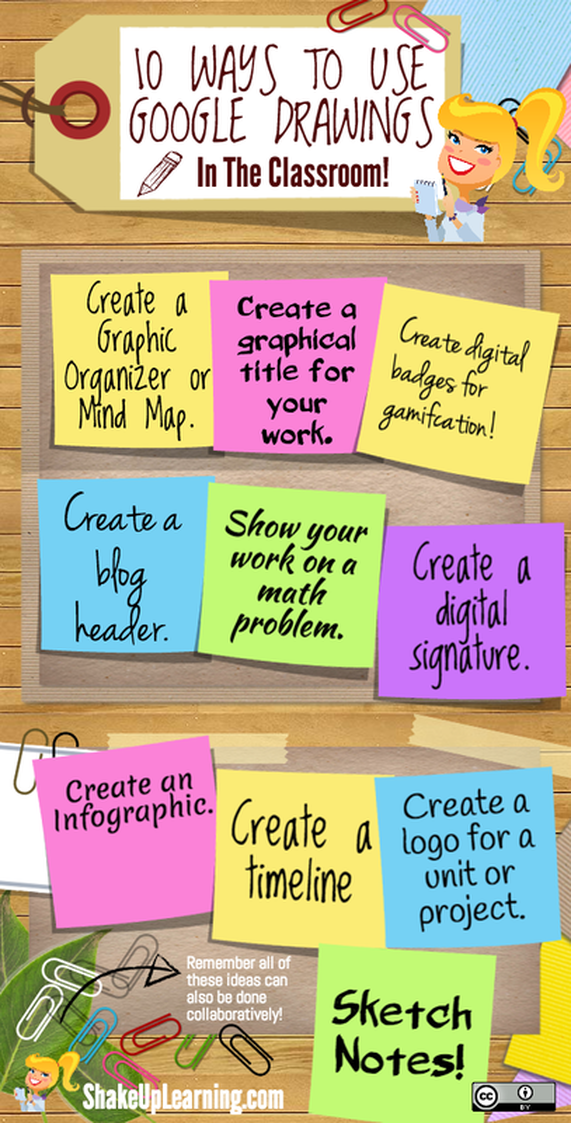
Google Drawings is a tool that is often overlooked by teachers. Being part of Google Drive, Drawings has some powerful features hat make it an ideal platform for creating educational posters, visuals, mind maps an many more. I have been using it to create several of the posters I shared here in the past and I find it really handy. Here is a step by step visual guide to help you learn how to use Drawings  to create posters.

I am also sharing with you this excellent visual from Shake Up Learning featuring more ideas on what you can do with Google Drawings. To access Google Drawings: Head over to your Google Drive, click on "New" then on "More" and select " Google Drawings".


10 Ways to Use Google Draw

Sunday, December 21, 2014

A Very Useful Tool to Create Educational Animated Videos on Google Drive

December 21, 2014
PowToon is a very powerful web app which you can use on Google Drive to create beautiful animated videos and presentations. PowToon provides you with all the necessary animation tools you�ll need to immediately begin creating your own professional-looking animated explainer videos and animated presentations. It has an easy to use interface with pre-designed templates and a variety of style libraries to choose from.


The videos you create in PowToon can also be easily converted into animated presentations with each slide representing a scene in the storyline of your presentation. To create your videos,  simply drag and drop characters and props then assign them animations. Using the the export button, you will be able download your animated videos to your computer or share them on popular social media outlets like YouTube and Facebook. You can also export your animations in MP4 files to embed in your blog or website or to play in a dedicated screen. All PowToon animations look the same on Mac, Linux, and Windows.

Watch this short video to learn more about PowToon


Saturday, December 20, 2014

The 11 Most Important Google Drive Updates in 2014

December 20, 2014
Throughout this year Google Drive has been continuously releasing interesting updates to enhance the performance of its services namely Docs, Sheets, Slides and Forms. Below is a run-down of some of these updates that you need to be aware of :


1- Suggested Edits 


This new feature is great for collaborative work on Google Docs. Before, when you share a Google document with your collaborators and grant them the editing rights they can edit anything in it. But with "Suggested Edits" you, as the owner of the document, can control this editing process by allowing collaborators to make only suggestions which you can either accept or reject. This new feature is not available on Google Docs for mobile. Here is the tutorial

2-  Edit Office Files in Google Drive


Sometimes people send you files and you need to be able to open them, make some edits, and send them back. If they don�t use Docs, Sheets and Slides it can be a challenge. With the latest update from Google Drive, this is no longer an issue because both the web and mobile apps for Docs, Sheets, and Slides let you edit Office files�without conversion�so you can now edit and send back files in their original format.

3- Widescreen Format

Google now allows a widescreen view of presentations. Now when you try to make a new presentation you will have a widescreen where you can get a ton of new space to fill with words, charts, tables or even a simple, beautiful image. You can also change the size of your slides using the pull down menu in the theme chooser, or by visiting Page setup in the File menu. Widescreen presentation are a good fit for TV or monitor.

4- Editable Master Slide

This functionality allows users to change customize the theme of their presentations as they like. can now easily tailor how content appears on every slide by selecting "Edit master" from the Slide menu. For example, you can set all of your header fonts to Alconica, make all of your first level bullets bold, and add a logo in the bottom right corner.

5- Edit, Crop, and Add Borders to Images in Slides

With this new feature, users can now customize and edit images they use in their Slides . Before this update, users were limited as to what they can do with images they upload to their slides,now Google makes it easier for anyone to crop, edit, apply shape masks, and add borders to their images from within the presentation.

6- Slide App is now available

Like Docs and Sheets, Google Slide has now a mobile app for both iOS and Android. Using this app, you will be able to create and edit slides on the go, even if you are offline.
7- The New Google Drive
Google has recently released a new updated version of Google Drive with a fresh and lively  look. The new Google Drive is the same as the old one except that it becomes "faster and works more like you re used to on your computer". I have spent sometime tinkering with it today and it seems way user friendlier than the older Drive.

8- Create Automated Lists in Google Docs
 This feature allows Google Docs users to easily  create automated lists. What this new feature does is that it detects the type of list you want to create and it automatically provides it for you. For instance, let's say you want to create a numbered list. If you type in number one for the first line, it automatically creates a numbered list for the rest of your data  and the same applies to other list genres.

9- Spell Check in Google Sheets
The Spell Check functionality Google added  to its Sheets is the latest improved version of spell check. It resembles in the way it works the spell check that exist on Google Slides and Google Docs. In this version, spelling is checked against the web (similar to Docs and Slides) so that the dictionary is always up-to-date. Also like in Docs and Slides, people can add words to their own dictionary so that the spell checker won't mark names or abbreviations as misspellings in the future

10- Google Plus Polls
Google+ Polls which allows users to easily create interactive polls and share them with others. Using this new feature , you can now poll your students or you followers right from your Google Plus page.

11- Enhance Google Presentations with these new features
Google Slides added some new cool features that allows users to easily adjust and edit images within Slides. With the new feature, users will not only be able to crop and add borders to their Slide images but will also edit and work on them without leaving the Slides.

 Follow us on : Twitter, Facebook , Google plus, Pinterest .

Monday, December 15, 2014

A Must Have Google Drive Checklist for Teachers

December 16, 2014
Google Drive checklist is a work realized by Neil Charlet and I learned about through a tweet from Sylvia Duckworth. Neil created this comprehensive chart featuring a wide variety of questions related the different things you can do on Google Drive. He first started with questions that would help your students better understand the core Drive features. next section is on Google Document  where you will  find another set of ideas related to everything students can perform on Google Doc from adding a title to a document to deleting a doc. The other three sections cover similar questions related to Google Presentation, Google Forms, Spreadsheets and Drawing.

As I come across this work, I thought this could be a very good checklist that teachers should keep handy. It won�t only bring to your attention the different things you can do on Google Drive but will also be a very good guide to manage, arrange and direct students work using Drive�s different services.

This work is available in a Google doc that you can copy to your Drive and use with your students from this link.


Thursday, December 11, 2014

New: You Can Now Create Maps in Google Drive

December, 2014
Here is a  new update released by Google a couple of days ago. Google My Maps, (former Maps Engine Lite) which is Google's tool for creating custom maps, is now integrated with Google Drive. You can now access My Maps right from your Drive account and from the same menu where you access your Docs, Slides and Spreadsheets.

To create a custom map on Google Drive, click on "New" then "More" and select "My Google Maps".


In addition to accessing your Google My Maps in Drive, you can now add more layers and points of interest to your map, import bigger spreadsheets and include more details in each info box. Also, Over the next week, all the maps you�ve created will also be accessible in Google Drive, so you can easily organize, manage and share them.

 Follow us on : Twitter, Facebook , Google plus, Pinterest .

Tuesday, December 2, 2014

A Handy Google Drive App to Edit, Annotate and Sign PDFs

November 2, 2014
PDFzen is a great free web tool that allows you to edit and sign your PDFs online. This app is integrated with Google Drive which means that you can easily edit the PDFs you have in your Drive. When you are done, you can save your edits back to Drive or download the document as a PDF or generate a link to share via email or social media websites.


Some other things you can do with PDFzen include: filling out DF forms, signing documents, highlighting text, leaving comments, and drawing on PDFs. PDFzen is also available for both iPad and iPhone.

"PDFzen is great for when you need to fill out a PDF form, but you are nowhere near a printer. Or if you don't think you should spend hundreds of dollars on PDF software just to use it one time. Or if you need to send your edited document as a fax and your local copy shop charges by the page.

Have PDFs on your desktop that you want to upload to PDFzen? The free deskPDF Reader integrates directly with PDFzen, so its just 1 click to immediately open your PDFs in PDFzen for quick editing & sharing. This is great for quickly publishing to the web, and collaborating with others. (deskPDF Reader is available for Windows & Mac, with Linux coming soon.)"